

If Sage 50 has stopped working, you may see a Windows error, a frozen “Not Responding” message, an unexpected shutdown, or a crash while opening Sage 50 or a particular company. The problem can appear suddenly or begin after a Sage update, Windows update, or change to your computer environment. Sage’s troubleshooting documentation lists several possible causes, including incomplete updates, Windows or .NET issues, security software interference, permissions, damaged files, and database-related problems.
The right solution depends on exactly when Sage stops working. If Sage will not open at all, you need a different starting point than if Sage opens normally but crashes when you select a company or payroll. The steps below start with safer checks and then move toward program, Windows, and company-data troubleshooting.
Why does Sage 50 suddenly stop working or become unresponsive?
There isn’t one single reason why Sage 50 stopped working. The cause can range from a simple permissions or update problem to an issue with Windows components, security software, the database environment, or company data.
Use the symptoms you see to narrow down the likely cause:
| What you’re experiencing | Possible cause |
| Sage 50 won’t open | Permissions, damaged installation, Windows/.NET issue, or update problem |
| Sage 50 is not responding | Program files, Windows components, security software, or database-related issue |
| Sage 50 crashes when opening | Damaged program files, Windows profile, Actian, or configuration issue |
| Sage 50 stops working when opening a company | Company/data files, data path, or database-related issue |
| Sage 50 stopped working after an update | Update may not have installed correctly |
| Sage 50 stopped working after Windows update | Windows/.NET compatibility or update-related issue |
| Sage 50 suddenly closes | Program, security software, Windows, or database component issue |
| Sage 50 stops working on a workstation | Version mismatch or network/data-path issue |
Sage specifically identifies incomplete or missing updates, .NET Framework problems, Windows issues, antivirus interference, incorrect data paths, workstation/server version mismatches, and damaged files among the possible causes of startup and “has stopped working” problems.
What Should I Check First When Sage 50 Has Stopped Working?
Start with these basic checks before making any changes to your Sage 50 installation.
A. Restart Your Computer
- Close Sage 50 completely.
- Restart your computer.
- Open Sage 50 again.
- Check whether the problem is resolved.
If you use Sage 50 on a network, make sure all users close Sage 50 before restarting the server or workstations.
B. Run Sage 50 as Administrator
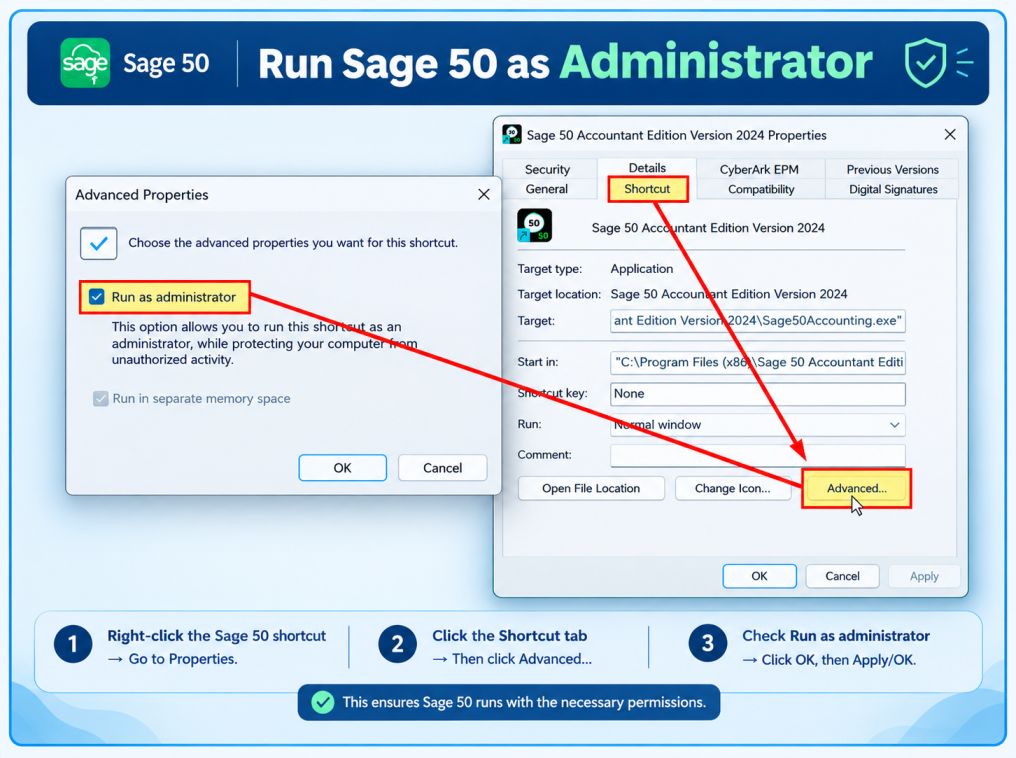
- Close Sage 50.
- Right-click the Sage 50 shortcut.
- Select Run as administrator.
- Confirm the Windows prompt if it appears.
- Open Sage 50 and check whether it works normally.
If Sage 50 works when opened as an administrator, Windows permissions may be contributing to the problem. Use this as a diagnostic check rather than assuming Sage 50 must always be run with administrator privileges.
C. Check for Sage 50 Updates
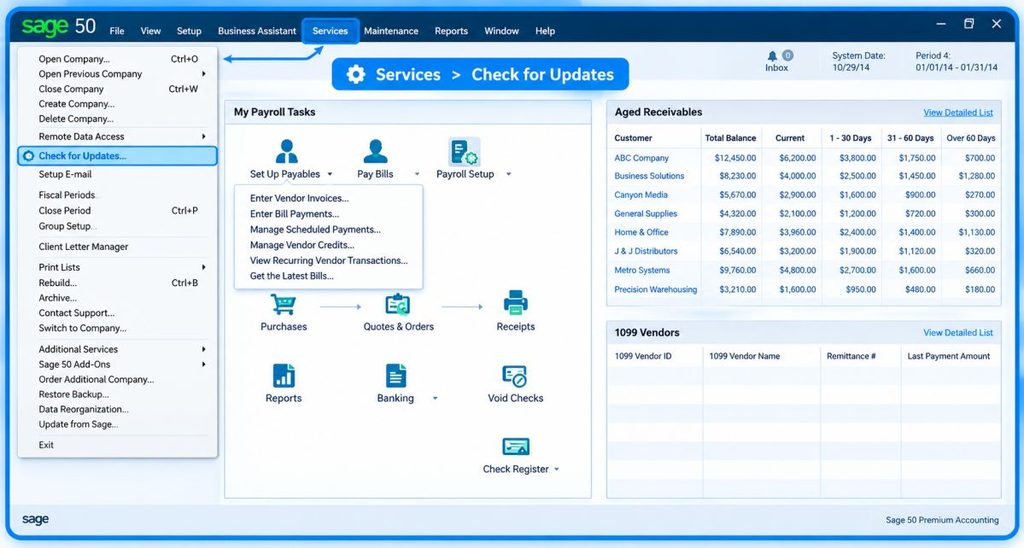
- Open Sage 50.
- Go to Services.
- Select Check for Updates.
- Install any available updates.
- Restart your computer and open Sage 50 again.
D. Check Windows for Updates
- Open Windows Settings.
- Select Windows Update.
- Click Check for updates.
- Install any pending updates.
- Restart your computer if prompted.
- Try opening Sage 50 again.
How to Fix Sage 50 Has Stopped Working
When Sage 50 has stopped working, start with basic checks before changing Windows settings or modifying company files. This approach helps you identify the problem without making unnecessary changes to your installation or accounting data.
Step 1: Restart Sage 50 and Check Basic Access
Begin with the least invasive troubleshooting steps.
- Restart the computer: If Sage 50 has frozen or stopped responding, completely close the program and restart Windows. Sage recommends rebooting the computer as an initial troubleshooting step. After Windows restarts, open Sage 50 again and check whether the same behavior occurs.
- Run Sage 50 as administrator: Right-click the Sage 50 shortcut and select Run as administrator. If Sage opens normally with administrator access, Windows permissions or the user environment may be contributing to the problem. Sage includes administrator access as an early troubleshooting step for the “has stopped working” error. If this changes the behavior, make a note of it rather than assuming that permanently disabling Windows security controls is necessary.
- Check whether Sage opens without the company: This is an important diagnostic distinction. If Sage 50 opens normally but crashes when you select a company, the problem may be related to the company data, data path, or database environment rather than the Sage program itself. Sage’s troubleshooting documentation separately addresses company-loading and data-path issues. So, don’t immediately reinstall Sage if the program itself opens successfully.
Step 2: Check Updates, Windows Components, and Security Software
If the basic checks don’t resolve the problem, look for software conflicts or incomplete updates.
A. Check for Sage 50 updates
An incorrectly installed or missing Sage product update can cause Sage 50 stopped working or related error messages. Check that:
- The latest applicable Sage 50 update is installed.
- The update completed successfully.
- Your Sage 50 release is still supported.
- Network workstations and the server or host are using compatible versions.
As of March 4, 2026, Sage 50 Accounting 2024 is no longer supported, and Sage states that version 2026 is the currently supported release. Older unsupported releases may no longer receive program, tax, or tax-form updates.
B. If Sage 50 stopped working after an update
Don’t immediately assume that the update itself is defective. Sage documents situations where an update was interrupted or did not install correctly, as well as cases involving damaged .NET components. Before attempting advanced changes:
- Close the error message.
- Confirm whether the Sage update completed.
- Check whether security software or a firewall interfered with the update.
- Reinstall the applicable Sage update using the appropriate Sage procedure.
- Check for .NET-related errors if the problem continues.
Avoid giving registry-editing instructions as a general fix. Sage has documented registry procedures for particular older releases, but those are version-specific troubleshooting steps rather than a universal solution.
C. Check Windows and .NET components
Damaged or missing Microsoft .NET components and Windows problems can cause Sage 50 has stopped working errors. If Sage’s diagnostic tools identify a .NET problem, use the appropriate Sage or Microsoft repair procedure instead of randomly changing Windows components.
D. Check antivirus or security software
Security software can sometimes interfere with Sage files, updates, or services. Sage lists antivirus and anti-spyware interference as a possible cause. If you suspect security software:
- Check whether Sage files or services are being blocked.
- Review the security software’s logs.
- Follow the vendor’s guidance for appropriate exclusions.
- Avoid permanently disabling security protection simply as a generic troubleshooting step.
Step 3: Repair Sage 50 and Investigate Company/Data Problems
If Sage still crashes or becomes unresponsive, move on to program repair and data-specific troubleshooting.
A. Repair the Sage 50 installation
Sage recommends repairing the installation when the program remains unresponsive or does not open correctly. Its troubleshooting guidance also recommends checking for product updates after repairing the installation. After the repair:
- Open Sage 50 again.
- Check for available product updates.
- Try opening the program.
- Test the affected company.
If Sage works normally after the repair, the problem may have been related to the program installation.
B. If Sage crashes only when opening a company
This is a different situation from Sage failing to start. Sage documents company/data-folder problems, incorrect data paths, and database-related issues as possible causes when a company does not load correctly. Before making data-related changes:
- Confirm that everyone is out of the company.
- Verify the company and data path.
- Create a backup or copy where appropriate.
- Use Sage’s data-verification tools when applicable.
- Follow Sage’s specific data-repair procedure if damaged data is suspected.
Don’t randomly delete files from the company folder. Some Sage troubleshooting procedures may involve specific files, but those actions depend on the exact problem and should only be performed when the applicable Sage instructions call for them.
C. If Sage opens and immediately closes
An immediate shutdown can have several causes, so don’t treat every automatic shutdown as the same problem. Sage has separate troubleshooting for certain standalone-workstation crashes, including error-specific situations involving SmartPosting. Those procedures are designed for the applicable error and should not be presented as a universal fix for every case where Sage 50 automatically shuts down.
Sage 50 Stopped Working When Opening a Company
If Sage 50 opens normally but crashes or stops responding when you select a specific company, the issue is more likely related to the company data, data path, or database environment than the main Sage installation. Before reinstalling Sage, check these areas:
A. Check the Company/Data Path
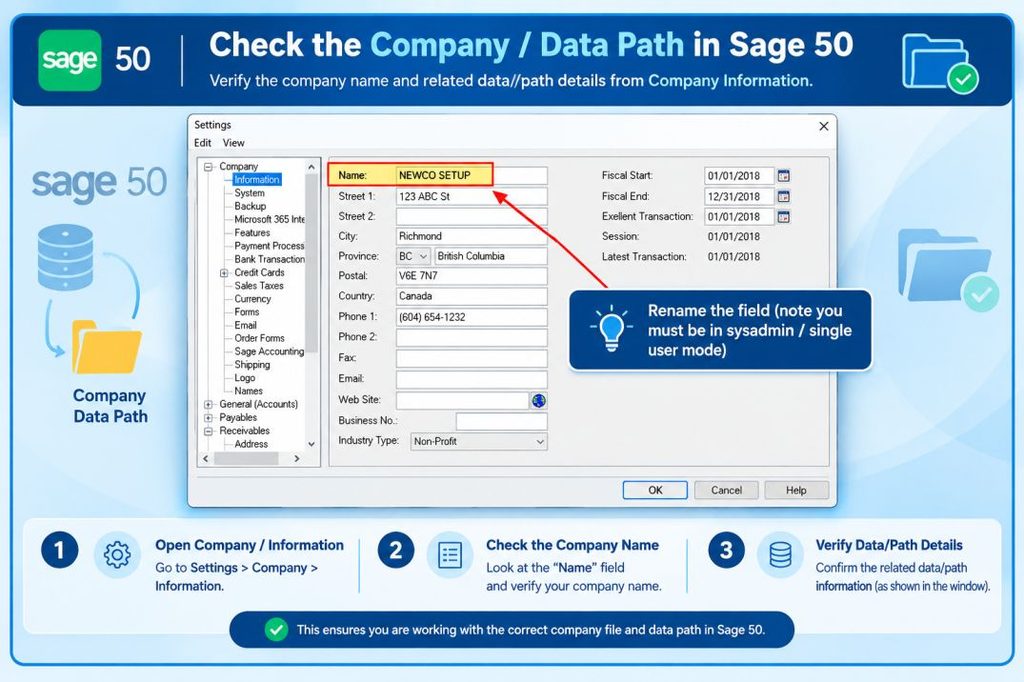
- Confirm the data location: Make sure Sage 50 is connected to the correct company data folder.
- Check network paths: If you’re using Sage on a network, verify the program and data paths on both the workstation and server/host.
- Compare versions: Make sure the Sage 50 versions installed on the workstation and server are compatible.
- Test another company: If other company files open normally, the problem may be limited to the affected company.
B. Check the Company Data
- Run data verification: Use Sage’s appropriate data-verification tools when the issue appears to be company-specific.
- Look for data-related errors: Pay attention to any error message that appears when the company starts loading.
- Create a backup first: If you suspect damaged data, make a backup or copy before attempting repair or cleanup.
- Avoid deleting files randomly: Company folders can contain important accounting data, so only remove or modify files when a specific Sage troubleshooting procedure recommends it.
If Sage works normally with other companies but consistently crashes with one company, focus your troubleshooting on that company’s data and environment rather than immediately reinstalling Sage 50.
Sage 50 Stopped Working After an Update
This section is especially relevant if Sage 50 stopped working after update, Sage 50 stopped working after installing update, or the problem began after a Windows update.
A. If Sage 50 Stopped Working After a Sage Update
First check whether the update completed correctly.
Sage documents cases where an interrupted or incorrectly installed service release can result in “Sage 50 has stopped working” or “Sage 50 has encountered an error.”
Check the update status, restart Windows if required, and follow Sage’s applicable update-reinstallation procedure. Also check whether antivirus or firewall software interfered with the installation.
B. If Sage 50 Stopped Working After a Windows Update
If Sage 50 stopped working after Windows update, check:
- Windows update status
- Sage 50 compatibility
- .NET Framework issues
- Sage 50 version and support status
- Whether the issue affects one computer or multiple computers
Don’t recommend uninstalling a Windows update as a first-line fix. Sage has documented Windows-update removal for specific historical problems, but that is an advanced, version-specific procedure and should only be considered when the applicable Sage documentation identifies that update as the cause.
Sage 50 Crashes When Opening or Won’t Open
If Sage 50 crashes when opening, Sage 50 won’t open, or Sage 50 not opening, work through the checks in a logical order:
- Restart Windows.
- Run Sage 50 as administrator.
- Check for Sage product updates.
- Check Windows and .NET issues.
- Check for security-software interference.
- Repair the Sage 50 installation.
- If Sage opens but crashes when selecting a company, investigate the data path and company files.
Sage’s official troubleshooting documentation uses similar diagnostic steps, although the exact solution depends on the error and installation environment. If Sage does not open even after these checks, note the exact error message and whether anything changed immediately before the problem started.
Sage 50 Stopped Working When Opening Payroll
If Sage 50 stopped working when opening payroll, first determine whether Sage works normally everywhere else. Check:
- Whether Sage 50 works normally outside Payroll
- Whether the issue affects one company or all companies
- Whether the problem began after a Sage or Windows update
- The exact error message
- Whether other users experience the same behavior
If Sage opens normally but fails specifically when Payroll is selected, don’t automatically treat it as a general Sage startup problem. The issue may be related to the payroll area, an update, company data, or a specific payroll operation.
If the actual problem involves payroll calculations or payroll updates rather than the Sage program crashing, use troubleshooting specific to that payroll issue instead of repeatedly repairing the entire Sage installation.
How to Prevent Sage 50 From Stopping Working
A few maintenance habits can reduce avoidable problems and make recovery easier when something goes wrong.
1. Keep Sage 50 Updated: Use a currently supported Sage 50 release and install applicable product updates. Sage currently lists version 2026 as the supported U.S. release, while support for 2024 ended March 4, 2026.
2. Keep Windows and Required Components Updated: Don’t ignore Windows or .NET-related errors reported by Sage. Keeping the operating system and required components maintained can help avoid compatibility and installation problems.
3. Avoid Security Software Conflicts: Make sure your antivirus and firewall aren’t blocking Sage components or updates. If you need an exclusion, use the security software vendor’s recommended configuration rather than leaving protection disabled.
4. Maintain Reliable Company Backups: Regular backups give you a recovery option if company data becomes damaged or requires repair. Keep backups in a location that is accessible and protected from accidental deletion.
5. Keep Network Installations Consistent: For network setups, make sure workstations and the server or host are using compatible Sage versions and the correct program and data paths. Sage specifically identifies workstation/server version mismatches and incorrect paths as possible causes of problems.
Conclusion
When Sage 50 has stopped working, start by identifying where the problem occurs instead of immediately reinstalling the program. Restart Windows, check administrator access, verify Sage updates, and investigate Windows, .NET, and security-software conflicts. If Sage still fails, repair the installation and then investigate company data, data paths, Actian, or network configuration when the symptoms point in that direction.
For company-data problems, take a backup before making changes whenever possible. And if the issue remains after the applicable troubleshooting steps, use the exact error message, Sage version, Windows version, and failure point to guide Sage support or qualified technical assistance.
FAQ About Sage 50 Stopped Working
Yes. Sage 50 versions that are no longer supported may continue to open, but they no longer receive program, tax, or tax-form updates, and connected services can stop working after the obsolescence date. For U.S. Sage 50, support for the 2024 release ended on March 4, 2026.
The basic startup troubleshooting is similar, but the editions have different capabilities and licensing options. Sage 50 U.S. currently includes Pro, Premium, and Quantum editions, with Premium supporting up to five named users and Quantum supporting up to 40 named users. Therefore, a problem involving multiple users, Remote Data Access, or network access may require edition-specific checks.
Not necessarily. Sage states that a company created or converted in a higher edition, such as Premium or Quantum, cannot simply be opened in a lower edition such as Pro. If you’re seeing a version or edition compatibility error, verify the edition used to create or convert the company before troubleshooting the program itself.
When moving from Sage 50 2024 or earlier to the 2026 release, company data may need to be converted. Sage states that the conversion wizard starts when each company is first opened in the new version. If Sage stops during this process, the issue may be related to the company conversion rather than a general Sage startup problem.
Changing the edition is not automatically a solution for a program that crashes or becomes unresponsive. Sage allows users to move between Pro, Premium, and Quantum by changing the serial number, but this does not upgrade the program from one annual release to another. If the underlying problem involves Windows, installation files, or company data, changing editions may not address it.
Yes. Sage states that an active subscription is required for certain connected services. These can include Remote Data Access, bank feeds, eFiling, direct deposit, online payments, and other integrations, depending on the service and plan. If Sage itself opens but a connected feature stops working, check the subscription and service status separately from the core program.
If the problem occurs only in a multi-user environment, check the edition, user licenses, server/host installation, and network configuration. Sage 50 Premium supports up to five named users, while Quantum supports up to 40. Remote Data Access multi-user functionality also requires the appropriate multi-user licensing and is not available for Sage 50 Pro.
It can. Sage’s subscription migration information notes that subscription plans provide access to newer releases and certain connected services. However, not every edition can be downgraded to Pro during migration; Sage specifically states that Quantum or Premium cannot be downgraded to a Pro subscription because their feature sets differ.
If you’re using Sage 50 U.S. 2026.0 and install the 2026.1 update, verify that the update completed successfully and that the installation matches your edition. Sage provides a specific 2026.1 update for existing 2026.0 installations, while a full 2026.1 installation is intended for new installations or upgrades from older releases.
Yes. Sage’s 2026 product documentation lists features across Pro, Premium, and Quantum, while some features have additional requirements such as an active cloud subscription or a service plan that includes payroll. Therefore, if a feature appears unavailable after an update, check both the Sage 50 edition and the associated service or subscription plan.
