

A Sage 50 login issue can stop you from opening your company, accessing your user account, or connecting to a company through Remote Data Access. The reason is not always an incorrect password. You may be using the wrong company, entering a case-sensitive username incorrectly, dealing with a locked Sage account, or running a version of Sage 50 that needs updating. Remote Data Access can introduce additional authentication requirements as well.
The quickest way to resolve the problem is to identify where the login fails and what message Sage displays. That gives you a much clearer starting point than repeatedly changing passwords or reinstalling the software. Sage’s current support documentation also distinguishes between company-user credentials, Sage account credentials, and Remote Data Access authentication.
Why Is My Sage 50 Not Letting Me Log In?
There isn’t one single cause of a Sage 50 login problem. The exact solution depends on whether you’re signing into a company, your Sage account, or a Remote Data Access company, as well as the specific error shown on screen.
| Login problem | Possible reason |
| Invalid logon name | Incorrect username or user setup |
| Invalid password | Incorrect password or changed credentials |
| Username and password not working | Wrong company, case-sensitive credentials, or changed credentials |
| Account locked | Too many unsuccessful attempts or account security block |
| Login after an update | Version or compatibility-related issue |
| Remote Data Access login failure | Sage account authentication or outdated credentials |
| Unable to authorize credentials | Sage account, security software, Windows, or CAPTCHA-related problem |
Sage’s documentation confirms that Sage 50 credentials can be case-sensitive and recommends checking that you’re opening the correct company. Its current guidance also identifies software-version differences as a possible cause of certain login-detail errors.
One important distinction is that a Sage 50 company-user login is not necessarily the same as your Sage account login. Using a correct Sage account email and password in a company-user login field may still fail because the program is expecting different credentials.
Read More: Import Invoices in Sage 50
How to Fix Sage 50 Login Issue
The most useful way to troubleshoot a Sage 50 login not working problem is to work through three practical stages. Start with the credentials and company, then deal with the user account, and only after that investigate updates or Remote Data Access.
Step 1: Check Your Sage 50 Login Details and Company
Before changing anything, make sure you’re signing into the right company with the right user credentials. Sage 50 can have multiple users within one company. Therefore, a username and password that work somewhere else won’t necessarily provide access to the company you’re currently opening. Sage specifically recommends checking the selected company when login credentials aren’t working. What to check:
- Confirm that you selected the correct company from the company list.
- Enter the username exactly as it was created.
- Check uppercase and lowercase characters.
- Make sure Caps Lock isn’t changing what you type.
- Re-enter the password instead of relying on an old saved credential.
- If you’re unsure about the characters you’re entering, verify them carefully before submitting the login.
- Ask an authorized administrator to confirm that your user still exists and has access.
- If you see “invalid logon name,” check the username first instead of immediately resetting the password.
Sage’s current documentation also notes that a company user may need to be licensed. If an administrator can log in, they can check the user’s security setup and licensing status.
Important: Don’t randomly delete users, create duplicate accounts, or change company data just because the login fails. First establish whether the problem is the username, password, company selection, user setup, or the underlying Sage data.
Step 2: Reset the Password or Resolve the User Account Problem
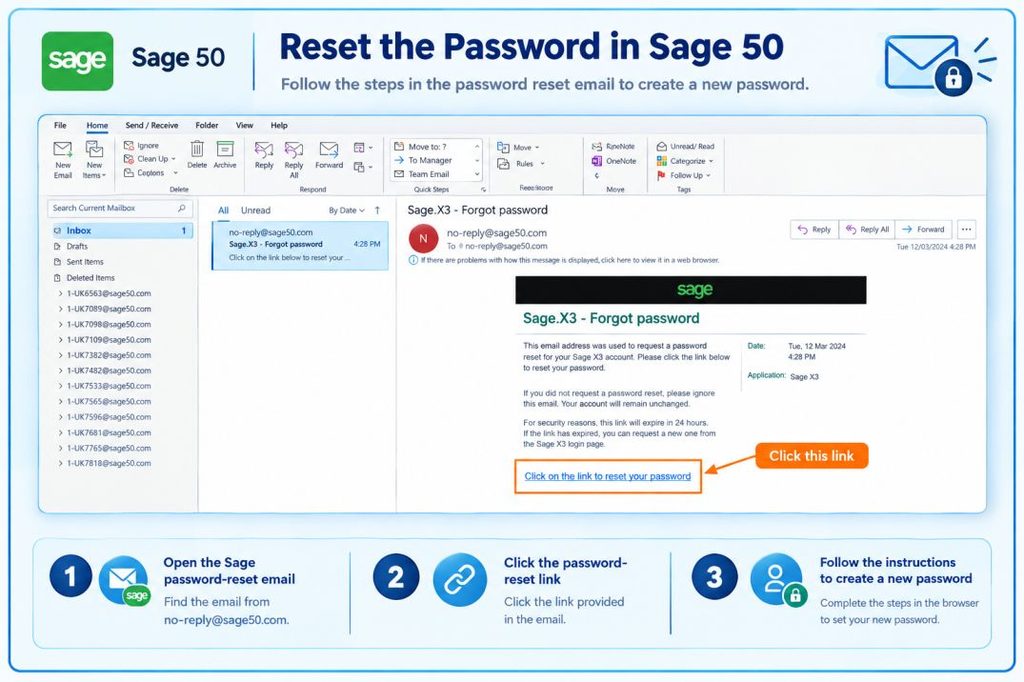
If the username is correct but Sage 50 still won’t accept the password, first determine which password you’re dealing with. A company-user password and a Sage account password serve different purposes. Treating them as interchangeable can make a simple login problem more confusing.
A. If a company user forgot the password
If another authorized administrator can access the company, Sage’s U.S. guidance states that the administrator can reset a user’s password through the user-security settings. After the reset, the affected user should try signing in again with the new credentials.
B. If you forgot your Sage account password
For a Sage account, use the Forgot password? option on the Sage login screen and follow the password-reset email process. Sage’s current documentation says the reset process uses the email associated with the Sage account. After resetting it:
- Complete the password reset from the email.
- Return to the Sage sign-in screen.
- Enter the updated credentials manually.
- Try the login again.
A password reset changes the Sage account password used for applicable online services; it does not automatically mean that every Sage 50 company-user password has changed.
C. If the account is locked
Don’t keep guessing passwords when you’re already receiving an account-block message. Sage says an account can be blocked after too many incorrect password attempts or when unusual activity is detected. When this happens, Sage sends a verification email containing a link that can be used to unlock the account. If you don’t see the message, check your spam or junk folder before attempting more logins.
D. If the administrator also cannot log in
This is where normal user-level password troubleshooting should stop. If the administrator cannot access the company and the available password-recovery options don’t restore access, Sage recommends contacting Sage Customer Service for further assistance.
Don’t confuse resetting a password with unlocking an account. A password reset changes credentials; unlocking restores access to an account that has been blocked.
Step 3: Troubleshoot Updates, Remote Access, and Authentication Errors
If you’ve confirmed the credentials but Sage 50 still refuses the login, look at the software and authentication environment.
A. Check for Sage 50 updates
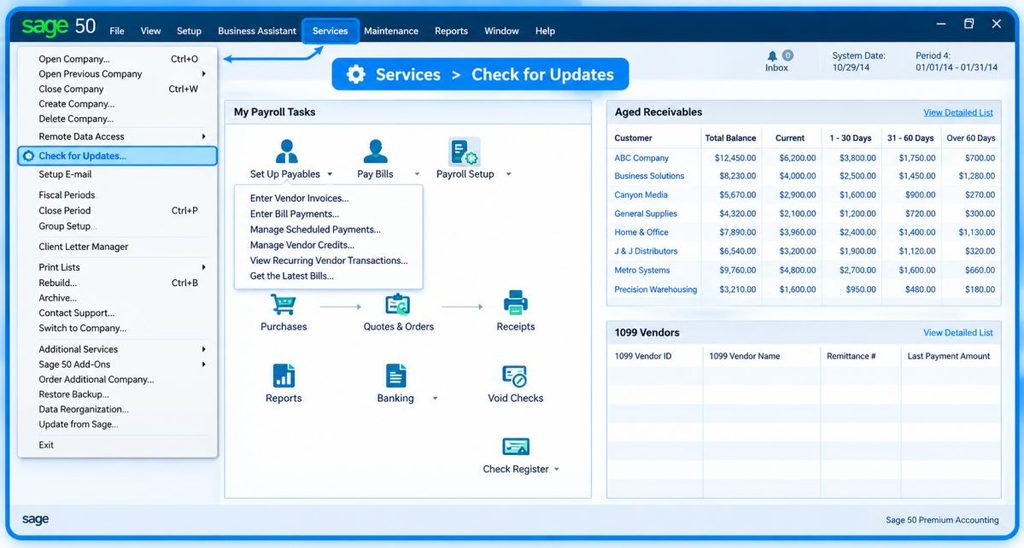
An outdated installation can contribute to some login and authentication problems. Sage’s documentation for invalid logon details specifically recommends checking that the software is up to date. Before making advanced changes:
- Check the Sage 50 version installed on the computer.
- Compare the versions being used by other computers accessing the same company.
- Install applicable Sage updates.
- Restart Sage 50 after updating.
- Try the login again.
This is especially important for businesses using several computers. Sage documented a 2026 issue in Sage 50 Accounts v33.1 where users could encounter a login-details error when different computers had different v33.1 builds. Sage states that the issue was resolved in v34 and later versions.
B. If you’re using Remote Data Access
Remote Data Access adds another authentication layer, so a Sage 50 Remote Data Access login problem may require different troubleshooting. If an administrator changes a user’s password for a Remote Data Access company, Sage says the user may need to re-download the company on the target computer before the new credentials work correctly. Also check whether Sage is requesting:
- Your Sage account email and password
- Your local Sage 50 company username and password
- Credentials associated with the Remote Data Access company
These are not necessarily the same credentials.
C. If Sage says it cannot authorize your credentials
For the specific “We were unable to authorize your credentials” error, Sage identifies several possible causes, including an unactivated Sage account, security software interfering with the credential screen, failed Windows updates, and CAPTCHA-related problems. Depending on what you’re seeing, check:
- Sage account activation
- Windows updates
- Firewall or security software
- CAPTCHA/verification
- Sage account credentials
- Browser cache
- Whether the login works from another computer
If the credential window itself doesn’t appear, Sage has also documented cases involving a failed Windows security update, a damaged Windows profile, or a damaged Userpref.DAT file. That is a more advanced situation, so avoid deleting or changing Sage files without following the relevant Sage procedure.
Read More: Sage 50 Running Slow
Common Sage 50 Login Errors and What They Mean
The exact wording of the message can tell you where to start. Here are some of the most common Sage 50 login errors.
1. “You Have Entered an Invalid Logon Name”
This generally means Sage isn’t recognizing the username you’re entering. Start by confirming the exact username with the company administrator. Don’t assume that your Sage account email is the same as your Sage 50 company username.
Sage also documents situations where an invalid logon name involving the Manager login can be related to underlying company-data problems. If the correct username still fails, follow Sage’s troubleshooting path rather than repeatedly changing credentials.
2. “You Have Entered an Invalid Password”
An invalid password message doesn’t always mean you simply forgot the password. First confirm that:
- You’re using the correct company.
- You’re using the correct user.
- The password is entered with the correct capitalization.
- The password wasn’t recently changed.
- You’re not confusing a Sage account password with a company-user password.
If another administrator can log in, having them verify or reset the affected user’s credentials is generally more useful than making unrelated changes.
3. “Invalid Logon Details”
Sage says this error occurs when Sage 50 Accounts doesn’t recognize either the logon name or password. Its current troubleshooting guidance begins with checking that the software is up to date and then working through the applicable login troubleshooting steps.
So, if Sage 50 says invalid logon details, don’t immediately assume the password is the only problem. Verify the username, company, software version, and user setup first.
Sage 50 Remote Data Access Login Problems
Remote Data Access deserves separate attention because its authentication process can involve both the Sage account and the shared company. If your Sage 50 Remote Data Access login problem involves credentials, check these areas:
- Sage account email and password are correct.
- The Sage account is activated.
- The user has access to the shared company.
- Recently changed credentials have been synchronized.
- The company has been re-downloaded when required.
- Windows and Sage 50 are up to date.
- Security software isn’t preventing the credential window from working.
- CAPTCHA or verification is completed correctly.
Sage specifically states that after an administrator changes a user’s Remote Data Access password, the user may need to re-download the company so the new credentials are updated locally.
If Sage displays “We were unable to authorize your credentials,” check the Sage account, Windows updates, security software, and authentication screen before assuming the password itself is wrong. For a Remote Data Access company that needs to be downloaded again, Sage’s current instructions use File > Connect to a Shared Company and then ask the user to sign in with the Sage account email associated with the shared company.
What to Do If Sage 50 Still Won’t Let You Log In
If you’ve worked through the basic checks and Sage 50 cannot log in, collect the details below before contacting support or making deeper changes:
- The exact error message
- Your Sage 50 version
- Whether other users can log in
- Whether the problem affects one company or multiple companies
- Whether the problem started after an update
- Whether the password or email was recently changed
- Whether you’re using Remote Data Access
- Whether the login works from another computer
This information helps separate an account problem from a computer-specific, company-specific, or Remote Data Access problem.
If the administrator cannot log in, password recovery doesn’t work, or Sage indicates a possible data-related issue, don’t keep making random changes to the company. Sage’s guidance directs users toward Customer Service when administrator access cannot be restored through the standard recovery process.
How to Prevent Sage 50 Login Problems
Once you have resolved a Sage 50 account login problem, a few simple habits can reduce the chance of seeing the same issue again.
1. Keep Your Sage 50 Credentials Secure
Treat each user’s login as an individual account rather than sharing one set of credentials across the business.
- Store credentials securely.
- Don’t share individual usernames and passwords unnecessarily.
- Avoid repeatedly guessing a password when a login fails.
- Make sure each employee has the appropriate user account.
- Have an administrator available who knows how to reset user passwords.
Keeping users and credentials organized also makes it easier to identify whether a problem affects one person or the entire company.
2. Keep Sage 50 and Your Computer Updated
Software versions matter, particularly when several computers access the same company.
- Keep Sage 50 updated to a supported version.
- Install relevant Windows updates.
- Restart Sage 50 after major updates.
- If a login issue starts immediately after an update, record the exact error before changing other settings.
Sage’s 2026 documentation provides a good example of why version consistency matters: a login-details issue affecting different v33.1 builds was resolved in v34 and later versions.
3. Keep User and Company Access Up to Date
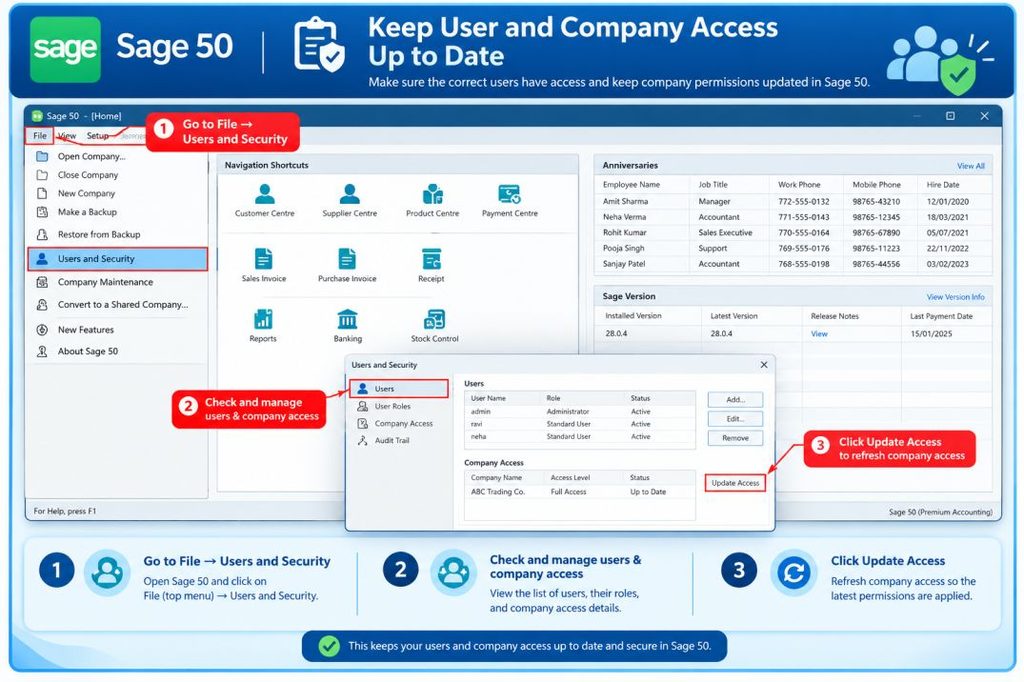
This is especially important when several people work with the same Sage 50 company.
- Remove or update users who no longer need access.
- Give new employees the correct user account.
- Make sure administrators know how to reset user passwords.
- Periodically verify that users can access the intended company.
- Check user licensing where applicable.
Sage’s troubleshooting documentation specifically includes checking whether a user is licensed when a user cannot log in.
4. Be Careful When Changing Passwords or Email Addresses
A password or email change can affect connected Sage services differently from a local company login.
Before changing anything, identify which credential Sage is requesting. If the problem concerns a Sage account, Remote Data Access, or another connected service, follow the appropriate authentication process rather than changing the local company user’s credentials unnecessarily.
5. Keep Remote Data Access Credentials in Sync
For businesses using Remote Data Access, remember that changing a user’s password may require additional action on computers that already have the shared company.
Sage specifically notes that after an administrator changes a Remote Data Access user’s password, the user may need to re-download the company so the updated credentials are applied.
Conclusion
Resolving a Sage 50 login issue starts with identifying the type of login that is failing. Check the correct company and credentials first, then determine whether the user needs a password reset or account unlock. If those steps don’t help, check Sage 50 and Windows updates, particularly when multiple computers access the same company. For Remote Data Access, also verify Sage account authentication and whether the company needs to be downloaded again after a credential change. If administrator access still cannot be restored or Sage points to a data-related problem, stop making unnecessary changes and use Sage’s support process for further assistance.
FAQ About Sage 50 Login Problems
An upgrade from Pro to Premium or Quantum can change the features, users, and access available to the company. Sage currently lists Pro for one user, Premium for up to five users, and Quantum for up to 40 users in the U.S. If a user cannot log in after an edition change, verify that the installed product and company configuration match the current subscription and that the user has been properly set up.
Your login credentials do not automatically change the edition installed on a computer. Sage 50 Pro, Premium, and Quantum have different capabilities and user limits, so the software installation and company configuration need to correspond with the subscription being used. If your business has upgraded its plan but an older edition remains installed, check the product version and installation before repeatedly changing your password.
Sage 50 Premium currently supports up to five users in the U.S. If an additional user cannot sign in, check whether the user has actually been created and licensed within the company. If the available user capacity has already been reached, adding another username alone will not provide access.
Quantum supports more users and role-based permissions than Pro or Premium. If other users can access the company but one Quantum user cannot, check that person’s user account, assigned permissions, and licensed-user status rather than assuming the entire Sage installation has a login problem.
Yes, subscription status can affect access to Sage 50 functionality. Sage states that its U.S. subscription software requires an active subscription and that if a subscription is terminated or payment is not received, users can have read-only access until the account is brought current. If the login problem appeared around renewal or payment, check the subscription status before changing company credentials.
A correct password does not necessarily mean the subscription is active. Sage’s current U.S. subscription terms state that full program functionality is not restored until the account is brought current after a subscription payment issue. If you can authenticate but Sage limits access afterward, investigate the subscription status rather than treating it as a password failure.
Sage releases can introduce changes to authentication, security, and product requirements. For example, Sage’s U.S. download portal currently identifies Sage 50 Accounting 2026.1 as the supported 2026 full product/update level. If a login problem started after moving from an older release to 2026, confirm that the correct 2026 installation and applicable update are being used before troubleshooting the credentials themselves.
This depends on the Sage product, release, subscription, and company environment. Sage’s current U.S. subscription information states that subscription customers must remain on the most current version to continue their subscription. If one computer is running an older release while another uses the current version, verify version compatibility before assuming that the username or password is invalid.
Yes. Sage currently distinguishes Sage 50 Cloud from Sage 50 Desktop in its U.S. product lineup. Sage describes its Cloud product as providing access from any device, while the Desktop edition requires installation on the computer. Therefore, a login problem on Sage 50 Cloud should not automatically be diagnosed using the same steps as a local Desktop company login.
For Sage 50 U.S., Remote Data Access is included for customers with a Sage 50c subscription plan while the subscription remains active. It allows the company database to be stored in the cloud and accessed from another location using Sage 50 U.S. Edition and an internet connection. If Remote Data Access suddenly stops working, checking the subscription status and the type of Sage 50 plan is therefore relevant.
