

If Sage 50 running slow is making everyday accounting tasks frustrating, the cause may not be Sage itself. Slow performance can come from network connectivity, company-data size, security software, damaged components, Windows configuration, or an environment that does not meet the requirements for the installed Sage release. Sage’s current troubleshooting guidance specifically identifies data volume, network and computer issues, antivirus software, Remote Data Access, and known software issues as potential causes.
The quickest way to narrow down the problem is to determine where and when the slowdown occurs. Does Sage 50 take a long time to open? Is only one company slow? Does it become sluggish when several users work over a network? Or did the problem begin after a Windows or Sage update? These details can point you toward the right solution instead of making unnecessary changes.
Why Sage 50 suddenly become slow on your computer?
Sage 50 performance problems can have several causes, so there is no single fix that works for every installation. Sage recommends checking whether the problem occurs in demonstration data, whether the software and computer meet current requirements, and whether the slowdown affects one area or the entire program. Common causes include:
| Possible cause | What you may notice |
| Large company data | Companies or reports take longer to open |
| Network problems | Sage is much slower in multi-user mode |
| Wireless connection | Delays occur while accessing shared data |
| Antivirus scanning | Slowness appears during file access |
| Damaged Sage components | Sage loads slowly, hangs, or freezes |
| Data issues | Specific modules behave unusually |
| Background applications | Performance improves when other programs are closed |
| Outdated software/build | Problems began after system or software changes |
| Remote Data Access | Remote users experience delays |
| Windows environment | One computer or Windows user is affected |
Sage’s U.S. guidance also identifies Actian Zen, network permissions, slow network speed, and company-data size as specific causes of performance problems.
What should you check first when Sage 50 runs slowly?
Before changing advanced Windows, network, or Sage settings, first determine whether the slowdown is limited to one computer, one company, or a specific task. This helps narrow down the cause and prevents unnecessary changes.
Test another company
If you have access to demonstration data or another company, open it and perform the same task that is running slowly.
- If another company works normally but your main company is slow, the issue may be related to your company data rather than the computer itself.
- Sage includes this type of comparison in its performance troubleshooting process.
- If possible, repeat the same action in both companies so you can make a more reliable comparison.
Test another computer
Try performing the same task on another workstation, especially if Sage 50 is used in a networked environment.
- If Sage runs normally on another computer but remains slow on only one workstation, investigate that computer’s Windows configuration, security software, background applications, and local Sage installation.
- If Sage is slow on every workstation, look more closely at the company data, server, network, or shared configuration.
- Comparing multiple computers can help determine whether the issue is local to one workstation or affects the wider Sage 50 environment.
Check which task is affected
Identify exactly where the slowdown occurs rather than treating Sage 50 as a whole. Common examples include:
- Opening Sage 50
- Opening a company
- Switching between screens
- Entering transactions
- Running reports
- Searching for records
- Saving transactions
- Switching users
- Accessing company data over a network
This distinction is important because troubleshooting can differ depending on whether the problem affects one specific function or the entire program. Once you know which task is slow and whether the issue occurs on one or multiple computers, you can focus on the most relevant area instead of changing settings unnecessarily.
How to Improve Sage 50 Performance Without Changing Everything at Once?
Once you know where Sage 50 is becoming slow, avoid changing multiple settings at the same time. The better approach is to check the Sage installation, Windows environment, background applications, and security software one by one. This helps you identify the actual cause without creating unnecessary configuration changes.
Solution 1: Check Your Sage 50 Version and Windows Environment
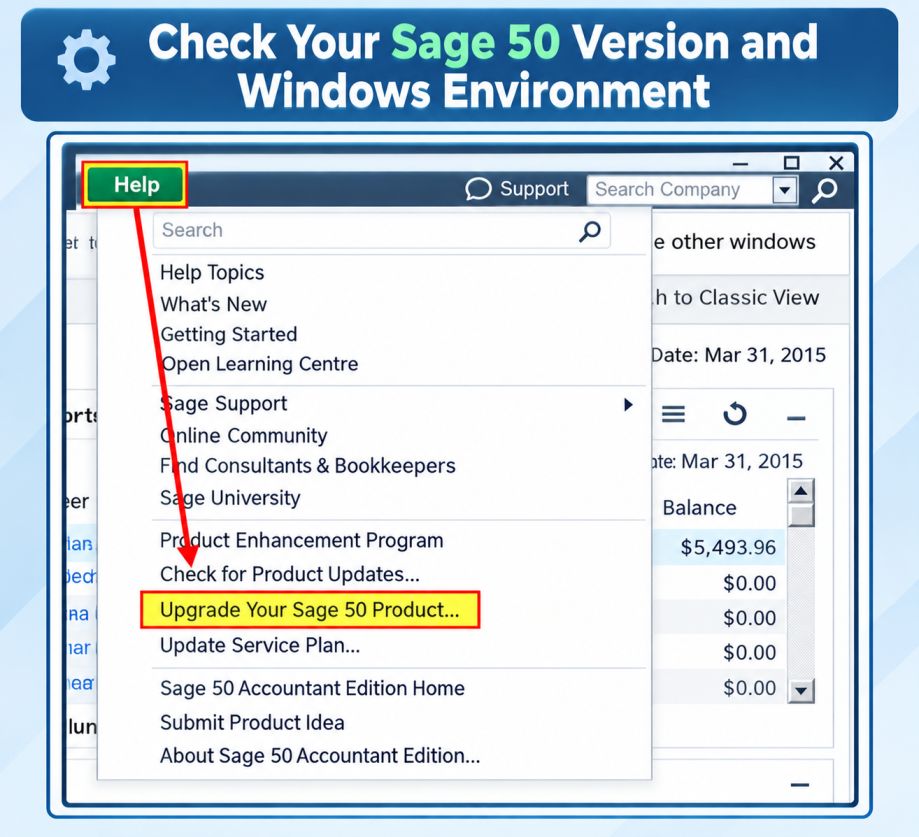
Start by confirming that your Sage 50 installation and Windows system meet the requirements for your specific Sage release. System requirements can vary between Sage 50 U.S. Edition, Sage 50 Canada, and different yearly releases.
Before making other changes:
- Check your Sage 50 product and release.
- Confirm that your Windows version is supported.
- Install available Windows updates.
- Check whether your computer has sufficient resources for your Sage setup.
- Consider the number of users if you are working in a multi-user environment.
For example, Sage 50 U.S. Edition 2026 lists Windows 10 version 21H1 or later and Windows 11 version 23H2 or later among its minimum supported operating systems. Sage also specifies additional recommended resources for some multi-user environments.
Sage 50 Canada 2026 has its own supported Windows configurations and resource recommendations for certain multi-user editions. If you are specifically troubleshooting Sage 50 slow performance on Windows 11, first identify your exact Sage edition and release. Do not rely on requirements published for an older version.
Solution 2: Close Unnecessary Background Applications
Applications running in the background can use CPU, memory, disk, and network resources that Sage 50 may also need. Before testing Sage again, close programs that are not required for your current work.
Then repeat the task that was previously slow, such as opening a company, entering a transaction, or running a report. If Sage becomes faster after closing other applications, check which background program is consuming significant system resources. You can then investigate that application instead of changing Sage or Windows settings unnecessarily.
Solution 3: Check Available System Resources
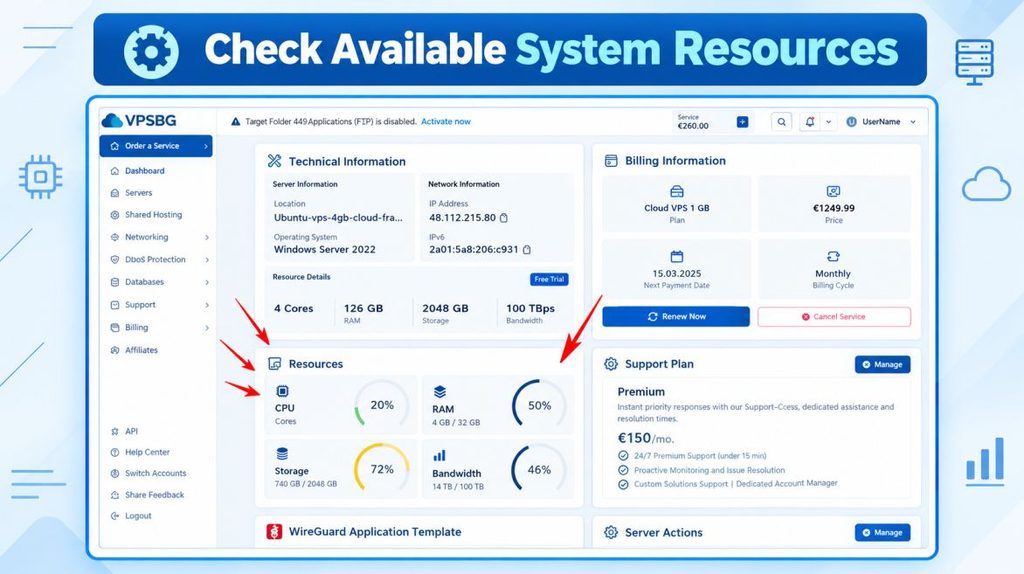
If Sage 50 becomes slow when performing resource-intensive tasks, check whether the computer is running low on available CPU, memory, or disk resources. Open Windows Task Manager and review resource usage while reproducing the Sage performance problem. Pay attention to:
- CPU usage
- Memory usage
- Disk activity
- Network activity
- Applications using unusually high resources
For example, if memory usage becomes very high whenever you run a Sage report, another application may be competing for available resources. This test can help determine whether the slowdown is related to the computer’s overall workload rather than Sage 50 itself.
Solution 4: Review Your Antivirus and Security Settings
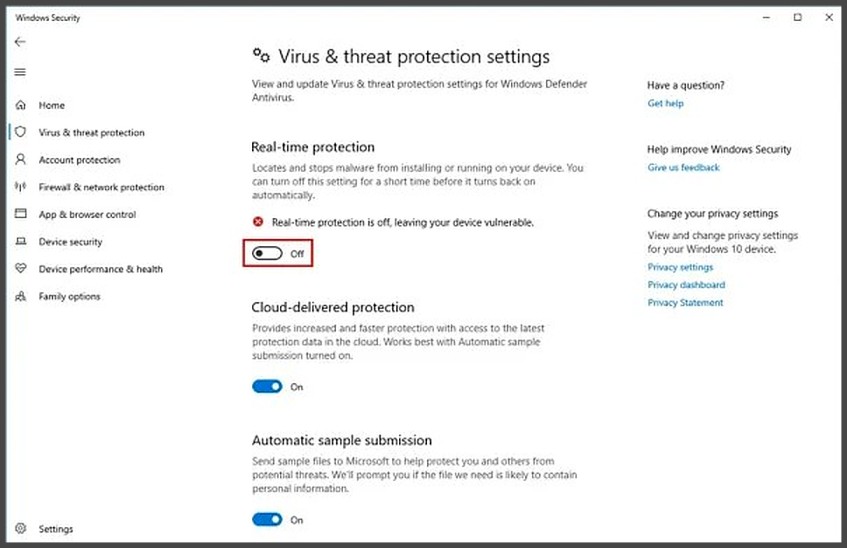
Antivirus and security software can sometimes affect Sage 50 when it continuously scans files or folders that Sage needs to access. If Sage is slow, ask your IT administrator to review the security configuration rather than immediately disabling protection. Check whether:
- Antivirus software is actively scanning Sage files.
- Sage-related exclusions are configured correctly.
- Firewall rules are allowing the required Sage communication.
- Security software is affecting access to Sage data.
- Server and workstation security policies are interfering with Sage.
Do not permanently disable your antivirus or firewall simply to improve Sage performance. If your computer is managed by an organisation, your IT administrator should review these settings and make any required changes.
Read More: Sage 50 Subscription Has Expired
Why Sage 50 Running Slow Over a Network Needs Special Attention?
Network installations deserve particular attention because Sage 50 may need to access company data stored on another computer or server.
A weak or inconsistent connection can make normal accounting tasks feel unusually slow. Check the network speed, connectivity, permissions, and configuration of the shared data location. For supported Sage 50 environments, a wired connection may also provide more reliable performance than a wireless connection.
If Sage 50 is slow for multiple users, compare these conditions:
- Is the server responding normally?
- Does the issue occur for every user?
- Is the slowdown worse during busy periods?
- Are the affected workstations using wired or wireless connections?
- Can each workstation reliably reach the server?
- Are shared-folder permissions configured correctly?
- Is security software scanning the shared Sage data?
- Does Sage perform normally with local or sample data?
For Sage 50 Accounts, Sage also provides a network-transfer test that can help determine whether file-transfer speed is contributing to the slowdown.
Check the Data Path
Incorrect or inaccessible network paths can cause performance and connectivity problems. Verify the shared-folder permissions, network communication, data path, and related configuration when Sage has trouble accessing network-based company data.
Avoid randomly changing network paths or permissions if you are unfamiliar with Windows networking. A server administrator or qualified IT professional should make these changes while preserving the existing Sage configuration.
Could a Large Sage Company File Be Causing the Slowdown?
Yes. A large Sage 50 company file can contribute to slow performance, especially when reports and other data-heavy tasks take longer than usual.
- Check whether only one company is affected: If other Sage company files work normally, compare their performance with the affected file. This can help determine whether the issue is related to the company data itself.
- Review the company statistics: Check how much data the affected company file contains. A large amount of stored or historical data may affect performance during reports, searches, and other data-intensive tasks.
- Consider removing old or inactive data: Where appropriate, Sage may provide maintenance options for reducing stored data. Only remove records when you are sure they are no longer required.
- Back up the company file first: Always create and verify a backup before carrying out any data cleanup or maintenance. Check what information will be removed before proceeding.
- Do not assume file size is the only cause: If the problem continues, check other possible causes such as network performance, Sage configuration, software issues, or the computer itself.
- Use Sage maintenance procedures when appropriate: For Sage 50 Accounts, available data-integrity and maintenance procedures may include reindexing or compressing affected modules. These should be performed only after creating a suitable backup.
Read More: Import Invoices in Sage 50
What If You Mean “Sage 50 Problems Today”?
The phrase “Sage 50 problems today” can describe either an issue with your individual computer or a wider Sage service incident.
If your Sage installation is suddenly slow, check Sage’s current service-status information for any reported incidents or maintenance affecting your product, region, or feature. If no relevant service issue is reported, continue troubleshooting the local computer, company data, and network.
Do not automatically assume that slow performance means there is a company-wide outage. Compare your symptoms with the current status information and then test the affected computer, company data, and network.
When Should You Consider Repairing or Reinstalling Sage 50?
Reinstalling Sage 50 should generally come after simpler environmental checks rather than being the first response to every performance problem. Consider investigating the Sage installation more closely when:
- Sage is slow on only one workstation.
- The same company performs normally elsewhere.
- Network performance appears normal.
- Background applications are not responsible.
- Security software has been reviewed.
- Sage components may be damaged.
- Sage hangs or freezes during startup or normal operation.
For Sage 50 U.S., damaged or improperly functioning Actian Zen components can contribute to performance problems. If other troubleshooting steps do not resolve the issue, follow Sage’s repair or reinstall guidance for your specific release. Before repairing or reinstalling Sage 50, make sure your company data is backed up and that you know where the data is stored.
Conclusion
When Sage 50 running slow, the most useful first step is diagnosis rather than immediately reinstalling the software or changing Windows settings. Check whether the slowdown is limited to one computer, one company, one task, or the entire network.
For standalone installations, investigate system resources, Sage components, data size, background applications, and security software. For multi-user installations, give additional attention to network speed, server configuration, shared permissions, and data access. Sage’s own troubleshooting documentation supports this environment-first approach and provides separate checks for standalone, network, data, and Remote Data Access performance problems.
If the issue started recently, also check Sage’s current status information before assuming your installation is responsible. A clear comparison of symptoms, users, computers, and data locations will usually give you a much better starting point for resolving persistent Sage 50 performance problems.
FAQ of Sage 50 running slow
Not necessarily. Performance depends on the Sage 50 release, company data, number of users, computer configuration, and how the software is being used. Different editions can support different capabilities, so compare the requirements for your specific release before assuming the edition itself is causing the slowdown.
It can, particularly when the installation, server, network, or workstation environment does not provide adequate resources for the number of users. Multi-user editions should be evaluated against the system and network requirements for the specific Sage 50 release you are running.
A version upgrade can change system requirements, database components, supported operating systems, and other parts of the Sage environment. If performance changed immediately after an upgrade, compare the new release’s requirements with your existing hardware, Windows version, network configuration, and company data.
Subscription or activation problems generally produce licensing or access-related symptoms rather than simply making every accounting operation slower. If Sage opens normally but individual tasks are sluggish, investigate performance factors separately from subscription status.
Compatibility depends on the exact Sage 50 edition and release. A version that worked on an older Windows environment should not automatically be assumed to be fully supported on a newer Windows release. Check the official system requirements for the specific version before upgrading Windows.
The answer depends on which Sage 50 product and release you are using and how its connected features are configured. A slowdown involving remote or connected services can have different causes from a slowdown that occurs entirely within a locally installed Sage 50 environment.
Remote access introduces additional factors such as internet connectivity, remote-service availability, latency, and the configuration of the local and host environments. If Sage performs normally when working locally but becomes slow remotely, investigate the remote connection separately from the local Sage installation.
The number of users can matter in a multi-user environment because multiple people may simultaneously access the same company data. However, the effect depends on the Sage 50 edition, release, server configuration, network, hardware, and workload rather than the user count alone.
Multi-user operation requires communication between workstations and the computer or server hosting the company data. If single-user mode is responsive but multi-user mode is slow, examine the multi-user configuration, network connection, server resources, and permissions for the particular Sage 50 edition and release.
Not necessarily. Moving to a different plan or edition can provide additional functionality or user capabilities, but it does not automatically resolve a slow computer, poor network connection, oversized company data, or an incorrectly configured installation. Performance should be diagnosed independently of the plan level.
